- Why I tried image generation AI for a waiting screen
- What I decided first: where the art goes and where the words sit
- Step 1: Running the same prompt again and again
- Step 2: Laying it into 1920×1080 and putting the words on top
- The result: I looked at it shrunk, with my own eyes
- If you use this: how to handle text and empty space
- Conclusion: can image generation AI be used for a waiting screen?
- Sources, and what is mine
Why I tried image generation AI for a waiting screen
Every stream has a few minutes before it starts. The screen that sits in the frame while the streamer is still setting things up is called a taiki-gamen — a waiting screen. It usually carries a picture and two pieces of text: the time right now, and the time the stream is meant to start.
I wanted to know whether that picture can be made with an image generation AI.
I keep a small tool that scores illustrations for whether they look hand-drawn or made with a generation tool. That is why people ask me about generated pictures fairly often, and a waiting screen is one of the few places where a generated picture is really put in front of an audience. So it seemed worth checking with my own hands.
One thing first, so you can weigh what follows. I do not have streams of my own yet. This is not a report from a live stream. Everything below was checked on one page, on my own screen, loaded into a browser source. Where I could not check something, I say so instead of filling the gap.
What I decided first: where the art goes and where the words sit
I fixed the frame before I made anything. 1920×1080, the size most streams use.
The picture fills the whole frame. I scale it so that it covers 1920×1080 and let the overflow fall off the sides, rather than fitting the whole picture inside and leaving empty bars. A waiting screen with bars on two sides looks unfinished to me.
Then the words. Two lines, both centered sideways:
- 現在時刻: (the current time) — the time itself at 160px
- 配信時間: (the stream time) — 20:00 at 62px
The clock is the line people look at, so it is the largest thing on the screen. The start time comes second, so it is less than half that size. The labels are written out in full instead of shortened, so that someone seeing the screen for the first time can tell what the numbers mean.
The two lines sit at fixed heights, 520px and 660px from the top. That puts the pair a little below the center and leaves about 140px between them. The gap is on purpose: any closer and the two readings start to look like a single block of text.
The digits are monospaced. The clock changes once a minute, and with a font where each digit has its own width, the whole line shifts sideways every time a digit changes. On a screen that sits still for ten minutes, that movement shows.
I also decided that the words would not depend on the picture. Every generation comes out a different brightness, so instead of hoping that the middle of a picture is dark enough, I darken the whole frame by a set amount and draw the text on top of that. The default is 45%.
All of those decisions live in one small block of numbers in the code below. That was on purpose. When the text turns out to be too small at the size viewers see, there is one place to change instead of ten.
Step 1: Running the same prompt again and again
For the picture itself I used a general text-to-image service in a browser: type an instruction, get a picture. I am not naming it, because nothing in the steps below changes with the choice, and I would rather not make it read as a recommendation.
The work was simple. I typed the same instruction, looked at what came out, and typed it again. I did not take the first result. In the end I put several pictures from the same instruction side by side and picked the one that could hold text.
What I was looking for was not the prettiest picture. It was a quiet middle.
The words sit in the lower middle of the frame. Most generated pictures put their subject in the middle, which is exactly where the text has to go. A face, a bright window, or fine detail right where the clock lands will fight the clock, and the clock loses. So for each picture I asked one question: is there enough calm, low-contrast space where the two lines will sit?
The other thing I checked is letter-like shapes. Generated pictures often contain marks that read as writing when you see them small. If the picture has something that looks like letters and I put real words on top, the eye gets two texts at once. I looked for pictures without those.
Step 2: Laying it into 1920×1080 and putting the words on top
My first plan was to composite the picture and the text in a Python script. I changed my mind after one try, because I wanted to move a number and see the result right away. So the whole thing became one HTML page with a canvas.
Here is the file. Save it as an .html file and open it in a browser.
<!DOCTYPE html>
<html lang="ja">
<head>
<meta charset="utf-8">
<meta name="viewport" content="width=device-width, initial-scale=1">
<title>画像生成AIの絵に待機画面の文字を重ねて、縮めたときに読めるか確かめる</title>
<style>
  :root {
    --paper: #f5f2ec;
    --ink: #23202a;
    --sub: #6d6672;
    --line: #ded7cb;
  }
  * { box-sizing: border-box; }
  body {
    margin: 0;
    padding: 40px 20px 80px;
    background: var(--paper);
    color: var(--ink);
    font-family: "Hiragino Sans", "Noto Sans JP", "Yu Gothic", Meiryo, sans-serif;
    line-height: 1.9;
  }
  .wrap { max-width: 1040px; margin: 0 auto; }
  h1 { margin: 0 0 10px; font-size: 25px; line-height: 1.6; }
  .lead { margin: 0 0 36px; color: var(--sub); font-size: 15px; }
  section { margin-bottom: 44px; }
  h2 {
    margin: 0 0 14px;
    padding-bottom: 8px;
    border-bottom: 1px solid var(--line);
    font-size: 14px;
    font-weight: 600;
    letter-spacing: 0.1em;
    color: var(--sub);
  }
  .controls { display: flex; flex-wrap: wrap; align-items: center; gap: 12px 18px; }
  .hint { font-size: 13px; color: var(--sub); }
  .filebtn {
    display: inline-block;
    padding: 9px 18px;
    border: 1px solid var(--ink);
    border-radius: 999px;
    background: #fff;
    font-size: 14px;
    cursor: pointer;
  }
  .filebtn input { position: absolute; width: 1px; height: 1px; opacity: 0; }
  .picks { display: flex; flex-wrap: wrap; gap: 10px; margin-top: 16px; }
  .pick {
    padding: 8px 16px;
    border: 1px solid var(--line);
    border-radius: 999px;
    background: #fff;
    color: var(--ink);
    font: inherit;
    font-size: 13px;
    cursor: pointer;
  }
  .pick.on { background: var(--ink); border-color: var(--ink); color: #fff; }
  input[type="range"] { width: 260px; accent-color: #9c3b2b; }
  output { min-width: 3.5em; font-size: 14px; font-variant-numeric: tabular-nums; }
  canvas { display: block; border-radius: 4px; background: #000; }
  #screen { width: 100%; height: auto; }
  #small { width: 480px; height: auto; max-width: 100%; }
  .cap { margin: 10px 0 0; font-size: 13px; color: var(--sub); line-height: 1.7; }
  .savebtn {
    margin-top: 16px;
    padding: 9px 18px;
    border: 1px solid var(--line);
    border-radius: 999px;
    background: #fff;
    color: var(--ink);
    font: inherit;
    font-size: 14px;
    cursor: pointer;
  }
</style>
</head>
<body>
<div class="wrap">

<h1>画像生成AIの絵に、待機画面の文字を重ねてみる</h1> <p class="lead"> 同じ指示で何度か作った絵をここに置き、1920×1080の待機画面に敷いて文字を重ねます。 最後に小さく表示したときの見え方を並べて、読めるかどうかを目で確かめます。 </p>

<section> <h2>1.敷く絵を選ぶ</h2> <div class="controls"> <label class="filebtn">自分の絵を選ぶ<input type="file" id="files" accept="image/*" multiple></label> <span class="hint">選ばないときは、明るい絵と暗い絵の見本で試せます。</span> </div> <div class="picks" id="sourceList"></div> </section>

<section> <h2>2.背景を暗くする量を決める</h2> <div class="controls"> <input type="range" id="dim" min="0" max="80" value="45" aria-label="背景を暗くする量"> <output id="dimOut">45%</output> <span class="hint">明るい絵のときは、文字の後ろを多めに暗くします。</span> </div> </section>

<section> <h2>3.1920×1080の待機画面</h2> <canvas id="screen" width="1920" height="1080"></canvas> <p class="cap">原寸は1920×1080です。ここでは横幅に合わせて縮めて表示しています。</p> <button type="button" class="savebtn" id="save">この待機画面をPNGで書き出す</button> </section>

<section> <h2>4.縮小したときの見え方</h2> <canvas id="small" width="480" height="270"></canvas> <p class="cap">480×270を原寸で並べています。配信サイトの一覧や、スマートフォンで見たときの大きさの目安です。</p> </section>

</div>

<script> const W = 1920; const H = 1080;

// 画面に出す言葉は略さない。「いま」「配信」ではなく「現在時刻:」「配信時間:」と書く。 const TEXT = { clockLabel: ’現在時刻:’, startLabel: ’配信時間:’, startValue: ’20:00’ };

// 見た目の決めごと。余白・行間・大きさの差は、先にここで決めてから描く。 const LOOK = { dim: 0.45, clockLabelSize: 60, clockSize: 160, startLabelSize: 40, startSize: 62, clockBaseline: 520, startBaseline: 660, shadowBlur: 26, outlineWidth: 5 };

const FONT_JP = ’"Hiragino Sans", "Noto Sans JP", "Yu Gothic", Meiryo, sans-serif’; // 時刻の数字は等幅にする。1分ごとに数字が変わっても、桁が横に動かない。 const FONT_NUM = ’"Courier New", Consolas, ui-monospace, monospace’;

const fontOf = (weight, size, family) => weight + ’ ’ + size + ’px ’ + family;

const screen = document.getElementById(’screen’); const small = document.getElementById(’small’); const sourceList = document.getElementById(’sourceList’); const fileInput = document.getElementById(’files’); const dimInput = document.getElementById(’dim’); const dimOut = document.getElementById(’dimOut’);

let sources = []; let current = 0; let dim = LOOK.dim;

// ── 絵を敷く ─────────────────────────────

function drawCover(ctx, image) { const iw = image.naturalWidth || image.width; const ih = image.naturalHeight || image.height; const scale = Math.max(W / iw, H / ih); const dw = iw * scale; const dh = ih * scale; ctx.drawImage(image, (W - dw) / 2, (H - dh) / 2, dw, dh); }

// ── 文字を重ねる ─────────────────────────

function paintText(ctx, text, x, y, fontSpec, fill) { ctx.font = fontSpec; ctx.textAlign = ’left’; ctx.textBaseline = ’alphabetic’;

// 影を先に落として、明るい絵の上でも字が浮くようにする ctx.save(); ctx.shadowColor = ’rgba(0, 0, 0, 0.62)’; ctx.shadowBlur = LOOK.shadowBlur; ctx.shadowOffsetY = 6; ctx.fillStyle = fill; ctx.fillText(text, x, y); ctx.restore();

// 明るい部分に重なったときのために、細い縁取りを足す ctx.save(); ctx.lineJoin = ’round’; ctx.lineWidth = LOOK.outlineWidth; ctx.strokeStyle = ’rgba(0, 0, 0, 0.38)’; ctx.strokeText(text, x, y); ctx.restore(); }

function drawLine(ctx, label, value, labelFont, valueFont, baseline, fill) { ctx.font = labelFont; const labelW = ctx.measureText(label).width; ctx.font = valueFont; const valueW = ctx.measureText(value).width;

const left = Math.round((W - (labelW + valueW)) / 2); paintText(ctx, label, left, baseline, labelFont, fill); paintText(ctx, value, left + labelW, baseline, valueFont, fill); }

function drawWords(ctx, clockText) { drawLine( ctx, TEXT.clockLabel, clockText, fontOf(500, LOOK.clockLabelSize, FONT_JP), fontOf(700, LOOK.clockSize, FONT_NUM), LOOK.clockBaseline, ’#ffffff’ ); drawLine( ctx, TEXT.startLabel, TEXT.startValue, fontOf(500, LOOK.startLabelSize, FONT_JP), fontOf(700, LOOK.startSize, FONT_NUM), LOOK.startBaseline, ’rgba(255, 255, 255, 0.94)’ ); }

// ── 仕上げ ──────────────────────────────

function nowText() { const d = new Date(); const hh = String(d.getHours()).padStart(2, ’0’); const mm = String(d.getMinutes()).padStart(2, ’0’); return hh + ’:’ + mm; }

function draw() { const source = sources[current]; if (!source) return;

const ctx = screen.getContext(’2d’); ctx.clearRect(0, 0, W, H); drawCover(ctx, source.image);

// 明るい絵の上でも文字が沈まないように、背景を一段だけ暗くする ctx.fillStyle = ’rgba(11, 10, 14, ’ + dim + ’)’; ctx.fillRect(0, 0, W, H);

drawWords(ctx, nowText());

// 縮めたときの見え方を、原寸(480×270)で並べる const sctx = small.getContext(’2d’); sctx.clearRect(0, 0, 480, 270); sctx.drawImage(screen, 0, 0, 480, 270); }

// ── 見本の絵(自分の絵を選ぶまでの仮)─────────

function makeDemo(paint) { const c = document.createElement(’canvas’); c.width = W; c.height = H; paint(c.getContext(’2d’)); return c; }

const demoSources = [ { name: ’明るい絵の見本’, image: makeDemo((g) => { const grad = g.createLinearGradient(0, 0, W, H); grad.addColorStop(0, ’#ffe8c6’); grad.addColorStop(0.55, ’#ffc79b’); grad.addColorStop(1, ’#f3a9c0’); g.fillStyle = grad; g.fillRect(0, 0, W, H); for (let i = 0; i < 8; i += 1) { g.beginPath(); g.arc(220 + i * 220, 1000 - i * 80, 150 + i * 18, 0, Math.PI * 2); g.fillStyle = ’rgba(255, 255, 255, 0.15)’; g.fill(); } }) }, { name: ’暗い絵の見本’, image: makeDemo((g) => { const grad = g.createLinearGradient(0, 0, 0, H); grad.addColorStop(0, ’#131a2b’); grad.addColorStop(0.6, ’#242c46’); grad.addColorStop(1, ’#3b2440’); g.fillStyle = grad; g.fillRect(0, 0, W, H); for (let i = 0; i < 10; i += 1) { g.beginPath(); g.arc(160 + i * 200, 200 + (i % 3) * 260, 90 + i * 12, 0, Math.PI * 2); g.fillStyle = ’rgba(160, 190, 255, 0.07)’; g.fill(); } }) } ];

// ── 画面の操作 ───────────────────────────

function renderPicks() { sourceList.textContent = ’’; sources.forEach((source, index) => { const button = document.createElement(’button’); button.type = ’button’; button.className = index === current ? ’pick on’ : ’pick’; button.textContent = (index + 1) + ’.’ + source.name; button.addEventListener(’click’, () => { current = index; renderPicks(); draw(); }); sourceList.appendChild(button); }); }

function applyLoaded(loaded) { const picked = loaded.filter((item) => item !== null); if (picked.length === 0) return; sources = picked; current = 0; renderPicks(); draw(); }

fileInput.addEventListener(’change’, () => { const files = Array.from(fileInput.files || []); if (files.length === 0) return;

const loaded = new Array(files.length).fill(null); let left = files.length;

files.forEach((file, index) => { const image = new Image(); const done = () => { left -= 1; if (left === 0) applyLoaded(loaded); }; image.onload = () => { const base = file.name.replace(/\.[^.]+$/, ’’); loaded[index] = { name: base || (’絵 ’ + (index + 1)), image: image }; done(); }; image.onerror = done; image.src = URL.createObjectURL(file); }); });

dimInput.addEventListener(’input’, () => { dim = Number(dimInput.value) / 100; dimOut.textContent = dimInput.value + ’%’; draw(); });

document.getElementById(’save’).addEventListener(’click’, () => { const link = document.createElement(’a’); link.download = ’waiting-screen-1920x1080.png’; link.href = screen.toDataURL(’image/png’); link.click(); });

// ── はじめの一歩 ─────────────────────────

sources = demoSources;
renderPicks();
draw();
setInterval(draw, 1000);
</script>
</body>
</html>
A few parts are worth pointing out.
drawCover scales the picture so that it covers the canvas, and lets the extra fall off the edges.
The darkening is one rectangle of semi-transparent black over the whole frame. The slider in section 2 of the page moves it between 0% and 80%.
drawLine measures the label and the value on the same canvas that draws them, then centers the pair. So each line stays centered as a unit even though its two halves are different sizes.
The small preview at the bottom is not a separate drawing. It is the same canvas, drawn into a 480×270 one. I wanted the size I judge to be the same pixels that end up in the file.
The button under the full-size canvas writes out a 1920×1080 PNG, the size a browser source and most stream pages expect.
setInterval(draw, 1000) redraws once a second. That is what makes the clock move.
The result: I looked at it shrunk, with my own eyes
The page has 33 elements in it, and nothing is left unclosed.
To check how it displays, I added a browser source in OBS and pointed it at that file. That is the same path a stream takes, minus the stream. Here is what was on the screen.
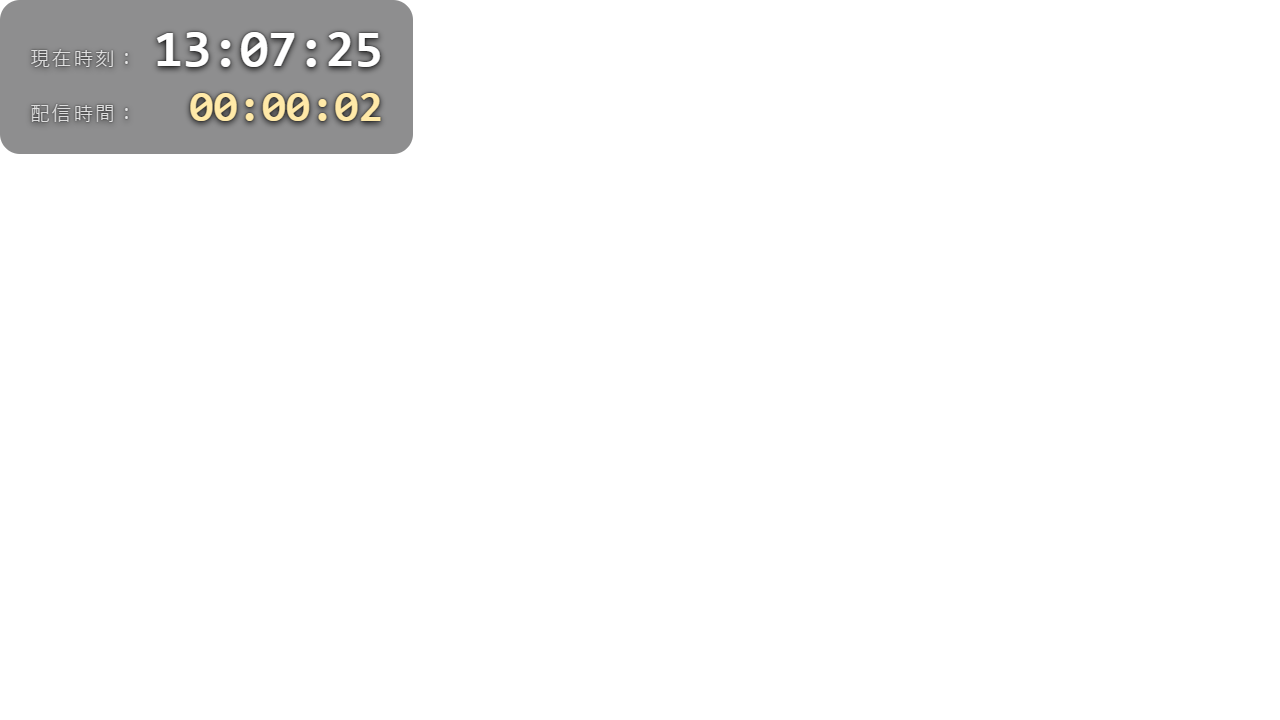
Then the part I actually wanted to know: what happens when the whole thing is small.
The page draws a 480×270 copy next to the full-size one, at its real size. That is roughly the size of a stream in a list, or on a phone. Here is the arithmetic of it, which is easy to do and worth doing before you decide anything. At 1920 wide, the clock is 160px tall. At 480 wide everything shrinks to a quarter, so the clock becomes about 40px. The start time becomes about 15px. The two labels become about 15px and 10px. Whether 10px is enough is not for me to decide on your behalf — that is why the copy is drawn on the same page, so that it cannot be avoided.
What worked: once the layout is fixed, changing the picture does not move the words. I swapped a bright picture for a dark one and the two lines stayed exactly where they were. That was the point of building the file, and it held.
What did not work, or what I could not check:
- I have no stream of my own, so I cannot tell you how this reads on a real stream page, sitting next to other streams, with someone half watching. That is the honest edge of this post.
- The two sample pictures inside the page are drawn by code, not generated. They are there so that the page does something before you choose a file. The art side still needs a picture of yours.
- The clock shows the time of the machine that is displaying the page. If that clock is wrong, the screen shows the wrong time. It is worth a look before you leave it up.
If you use this: how to handle text and empty space
These are the spots where I had to make a decision.
Text sinking into a bright picture. The file has three defenses, in order of strength: a dark layer over the whole frame, a soft shadow under each letter, and a thin outline around each letter. On a mid-bright picture the shadow does most of the work. On a bright, busy picture the outline helps. The dark layer helps on both, but you pay for it with the picture.
Dimming and the picture pull against each other. At 45% the picture is still clearly itself. Push the slider to 80% and the generated picture is mostly gone. At that point you have spent a generation to get a dark grey rectangle. Decide which one you are showing, the picture or the words, and set the number to match.
Margin. The words are centered, but nothing stops a longer line from reaching the edges if you change the text. Keep at least 100px of empty space on the left and right at 1920 wide, and check it at 480. A margin that looks generous at full size can disappear when it shrinks.
Fonts. The file lists several fonts in order, because not every machine has the same ones. If the monospaced font is missing on the viewing machine, the digits can change width, which is exactly what the monospace was there to prevent. If you can, look at it on a machine that is not yours.
Fixed positions, not “wherever the picture happens to be dark.” If you place words over the dark part of one picture, the next generation moves that dark part somewhere else. Fixed positions plus a dim layer keep the words independent of whatever the picture does.
Conclusion: can image generation AI be used for a waiting screen?
I think the answer is yes for the picture, but the picture is not the part that decides whether the screen works.
A waiting screen is mostly information. Two times, read at a glance, from a small thumbnail in a list. That job belongs to the layout, the size of the digits, and the empty space around them. A generated picture can fill the frame behind all of that, and it does so without much trouble — that part was quick. The part that took thought is the same part it would take with a hand-drawn picture: where the words sit, how large they are, and whether they still read when the whole thing is a quarter of its size.
So, where it fits. It fits a screen where the words carry the information and the picture is atmosphere, and where you change the picture often enough that you do not want to wait on a drawing. It fits if you want a different look each time and you do not need the same character twice.
Where it does not fit. If you need the same character in the same clothes across several screens, generation will not hold that for you, and you will spend more time fighting it than drawing it. And if the picture you like is bright and busy right where the clock goes, no shadow will make that comfortable. The right fix is a different picture, not a thicker outline.
One limit I want to leave in plain sight. I checked this on my own screen, in a browser source, at two sizes. I did not check it in a live stream, because I do not have one yet. If you do stream, you are one step ahead of me on the only test that counts, and it takes ten minutes: put it up before your next stream and look at it on a phone.
Sources, and what is mine
So that you can tell my work apart from other people’s:
- The HTML, CSS and JavaScript above: written by me. The two sample pictures inside that file are drawn by code in the same file. They are not generated, and they are not drawn by hand either.
- OBS Studio — the browser source I used to check the display: obsproject.com, source at github.com/obsproject/obs-studio.
- Python — mentioned only as the plan I set aside: python.org.
- The fonts named in the CSS: Hiragino Sans (Apple), Yu Gothic and Meiryo (Microsoft), Courier New and Consolas (Microsoft), and Noto Sans JP from Google’s Noto project (fonts.google.com/noto, github.com/notofonts). The first ones are fonts I expect to be on the machine already.
- The image generation service: not named, as above. The steps here do not change with it.
コメント